How to Use the Teams Portal
This tool is for you if:
- You are an administrator who needs professional learning for your staff and want to track and document staff completion.
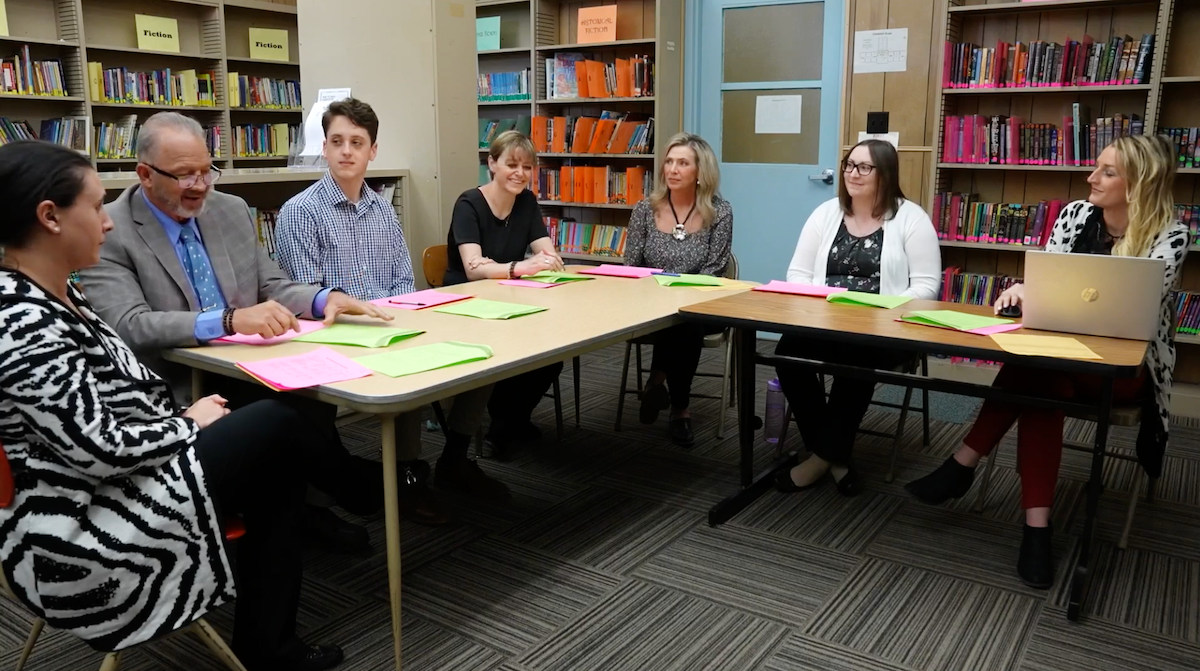
- You are the leader or a member of a team that has prioritized professional learning and wants to coordinate it as a group.
- You are a regional or district coach who works with schools or other organizations and wants to carefully plan, assign, and track online learning alongside your coaching.
- You are a professor or instructor who wants to include OCALI’s modules, mini-lessons, and webinars in your coursework and track how students are completing them.
Get Started with 5 Simple Steps
- Create a team and enter basic information like team name.
- Invite people to become members by entering individual emails or a bulk list.
- Browse online learning options from nearly 10 websites.
- Select the resources you want team members to complete and click on team member names to assign them.
- Add a target date for completion, if needed.
Other features include the ability to:
- Monitor the progress of your team members.
- Generate an excel spreadsheet that lists all team members and provides start and completion dates of the assigned resources.
- Email updates or reminders to your team members directly from the portal.
- Change target dates whenever needed.
- Add other people with Teams Portal Administrator access to help you manage the team invitations, assignments, and tracking.
- Create multiple teams if working with different districts, buildings, or teams.
Ready to Get Started?
How Do District, Building, and Team Staff Members Access the Training
- Instruct the staff members who will participate in the training to set up an account on ocali.org using their work email.
- Once you have set up a team and invited them, they will receive the email invitation from support@ocali.org.
-
Team members will also receive an email notification when you have assigned online learning to them. It will show up in the My Learning Plan when they log into the site.
Note: Organizational firewalls sometimes block automated emails coming from different servers. If staff members do not receive emails from support@ocali.org, instruct them to go directly to their Learning Plan on ocali.org and view all notifications there.
If you need technical support or have questions concerning the new Teams portal, please reach out to support@ocali.org. Our team is here to support you as quickly as we can. Response times are fastest between 9:00 a.m. – 4:30 p.m. EST Monday through Friday.